Setting Up Operators & Adding Machine Details On The DataLogger®

1. Select “Settings” from the Home screen.
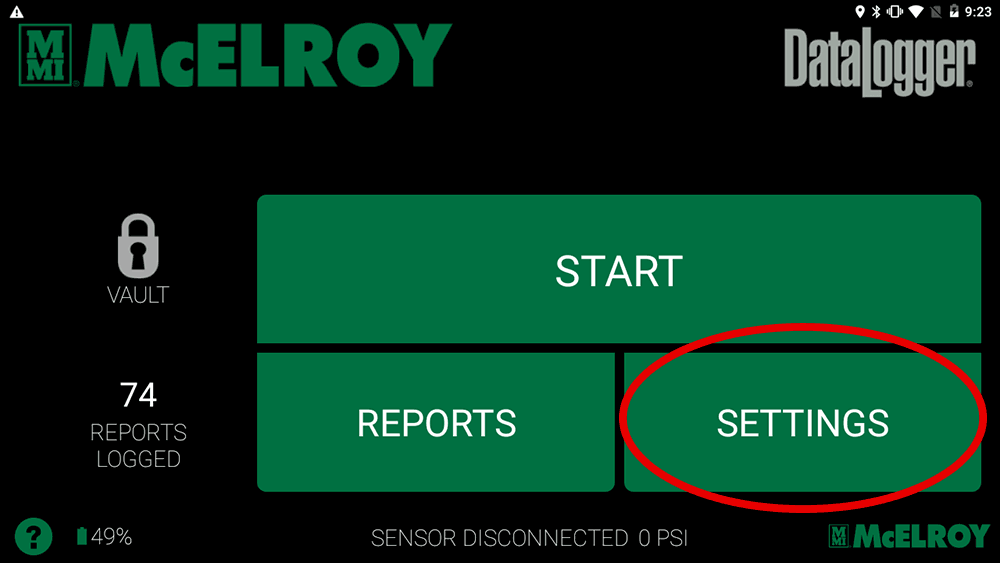
A screen from a McElroy DataLogger device showing START, REPORTS, and SETTINGS buttons. SETTINGS is circled in red. The screen displays 74 REPORTS LOGGED and SENSOR DISCONNECTED 0 PSI.

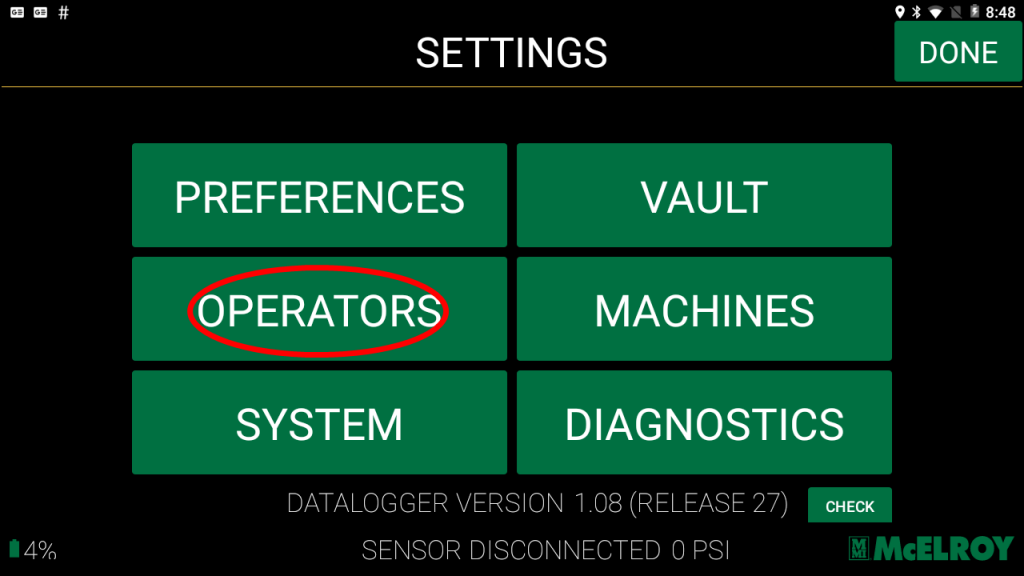
2. Select “Operators” button.

A settings menu screen with six large green buttons: Preferences, Vault, Operators (circled in red), Machines, System, and Diagnostics. Status bar at bottom shows version, sensor info, and McElroy logo.

3. Choose the “add operator” button.
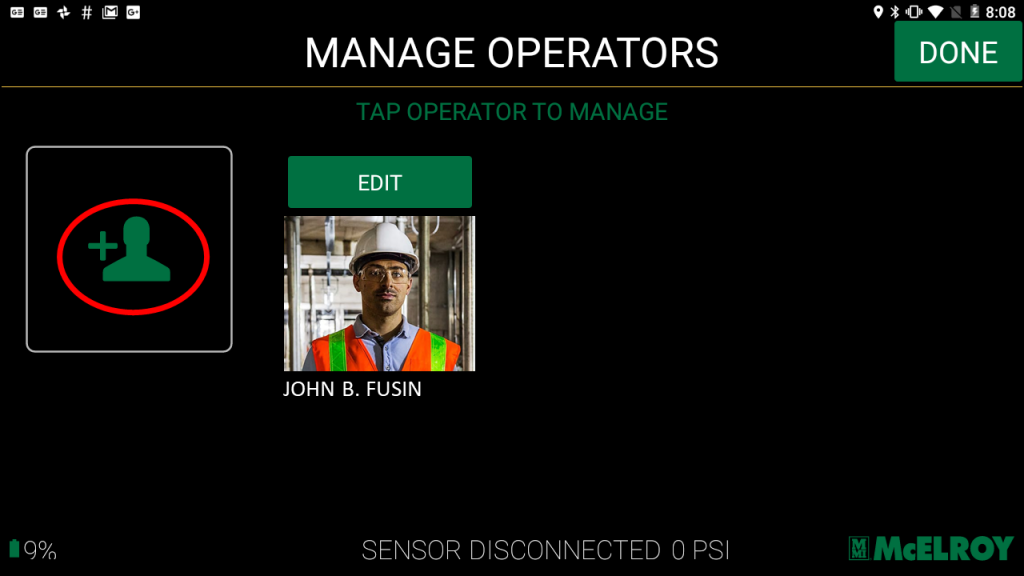
A screen titled Manage Operators displays an option to add a new operator and an existing operator named John B. Fusin, wearing a hard hat and safety vest, with an edit button and a DONE button at the top right.

4. Enter Operator name, ID number if applicable and ID Issuer.

NOTE: You can also add a picture of the operator.

Click the “Save” button to save operator details and return to the Settings menu screen.
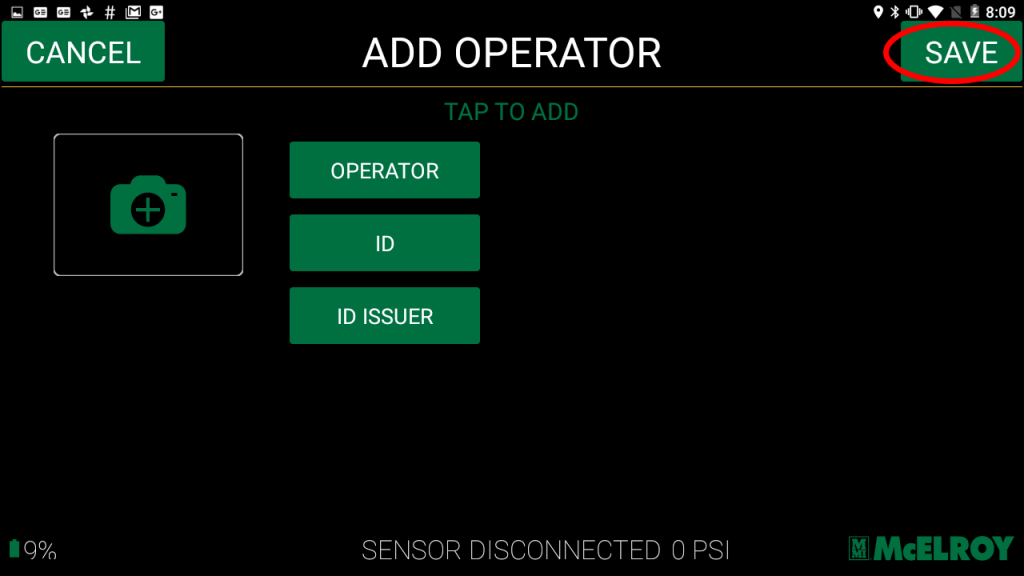
A digital interface for adding an operator, with options to enter Operator, ID, and ID Issuer. Cancel and Save buttons appear in the top corners. Status bar and sensor status are shown at the bottom.

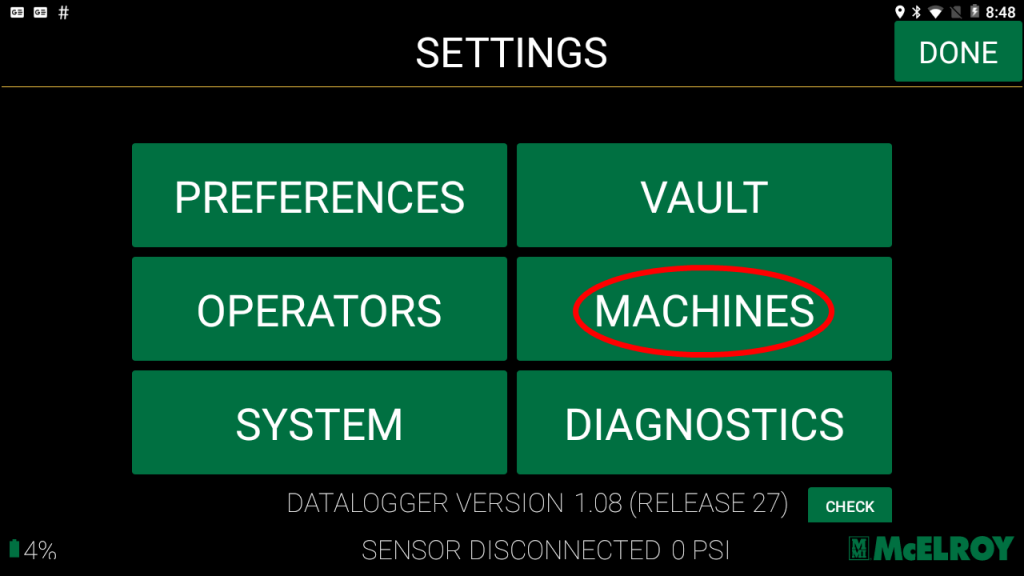
5. Select “Machines”.

A settings screen with six green buttons labeled Preferences, Vault, Operators, Machines (circled in red), System, and Diagnostics. The Done button is in the top right corner. Status info is shown at the bottom.

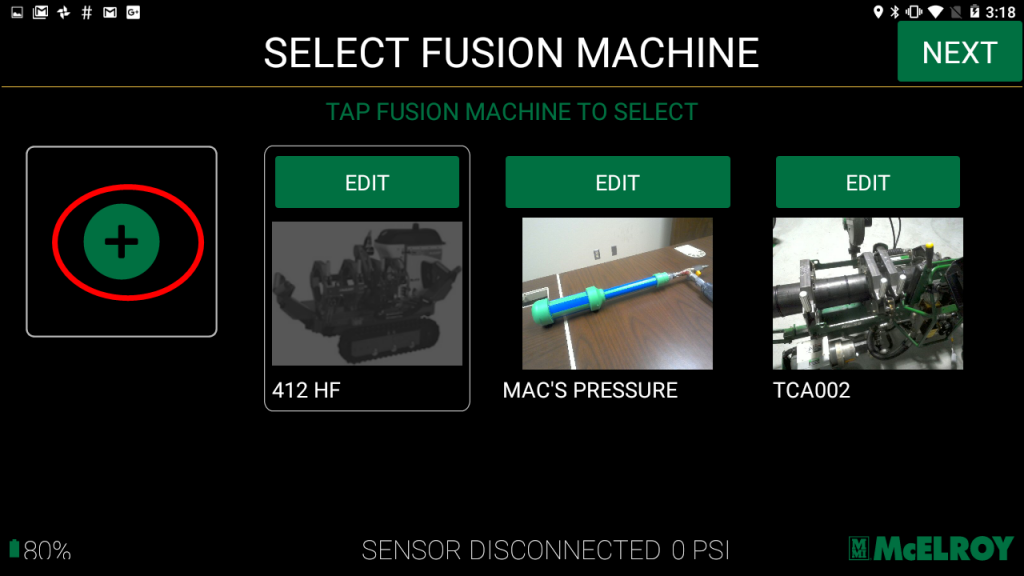
6. Select the “Add Button”.

A touchscreen interface displays a selection screen for fusion machines, showing options labeled 412 HF, MACS PRESSURE, and TCA002, each with an EDIT button, plus a large green plus sign to add a new machine.

7. Add Machine Details.

Enter the machine model, name, and serial numbers in each selection.

NOTE: A picture of the machine can be included.
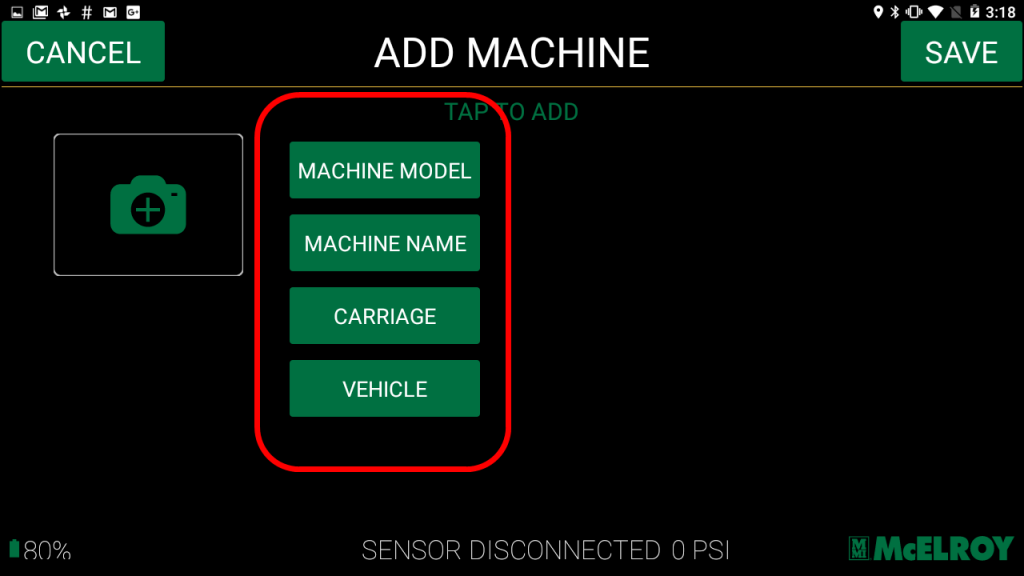
A tablet screen displays an ADD MACHINE menu with options: Machine Model, Machine Name, Carriage, and Vehicle. There are CANCEL and ADD buttons, and a status bar at the bottom shows SENSOR DISCONNECTED 0 PSI.

8. Save changes.

Click the “Save” button to save all machine details and return to the Settings menu.
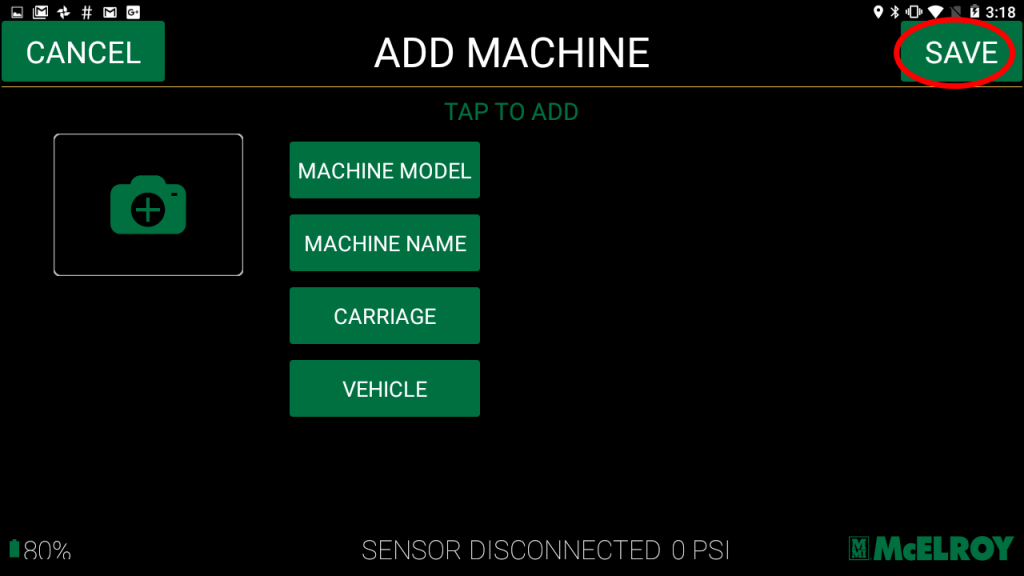
A screen displays options to add a machine, with buttons for machine model, machine name, carriage, and vehicle. Cancel and Save buttons appear in the top corners. Status reads SENSOR DISCONNECTED 0 PSI.