Stop A Joint Recording In The DataLogger®

1. Before aborting a joint, ensure the setting “save aborted joints” is set to “YES” in your Preferences.

Settings > Preferences > Joint Retention: Save Aborted Joints > “YES”
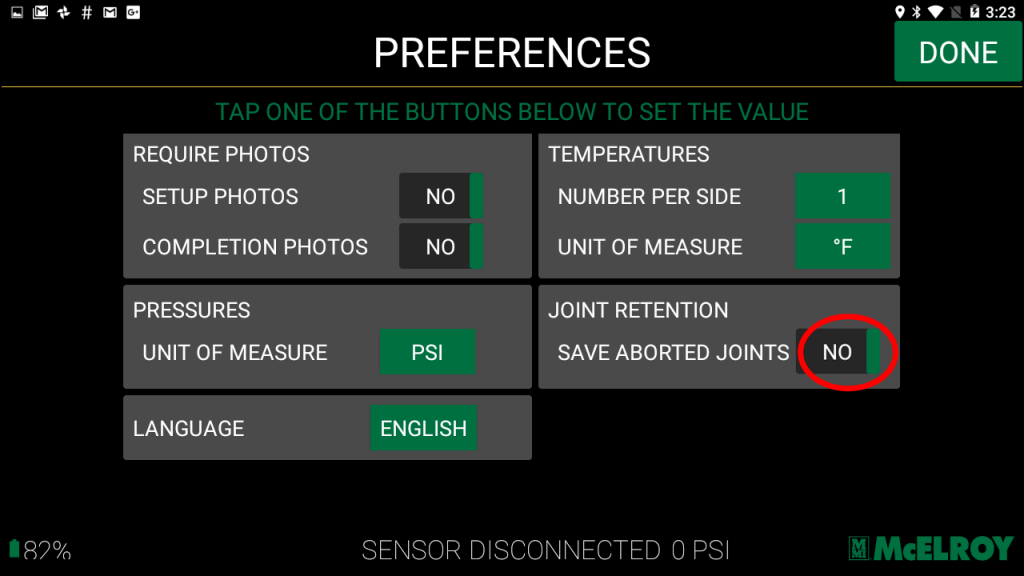
A digital preferences menu with options for requiring photos, units of measure, language, temperature units, joint retention, and saving aborted joints. Some options are toggled on or off. Sensor disconnected is shown at the bottom.

2. At any time during the fusion process, push the “ABORT” button in the top, left-hand corner of the screen to stop the recording process.
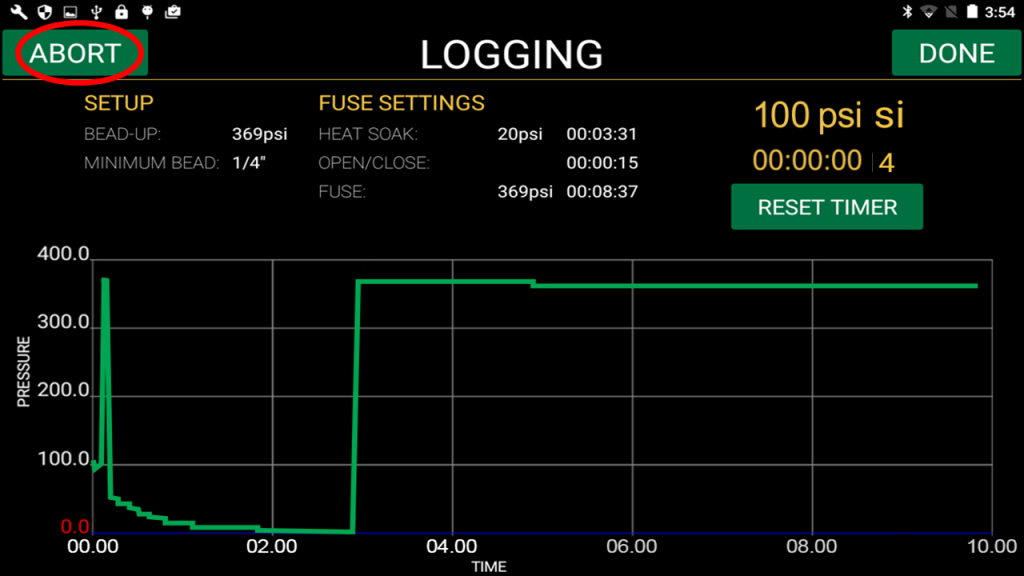
A digital logging interface displays pressure data with a graph. ABORT is circled in red at the top left. Readings and timers for fuse settings appear on the right, with a green RESET TIMER button below.

3. A pop up box will appear to confirm you want to stop this fusion.
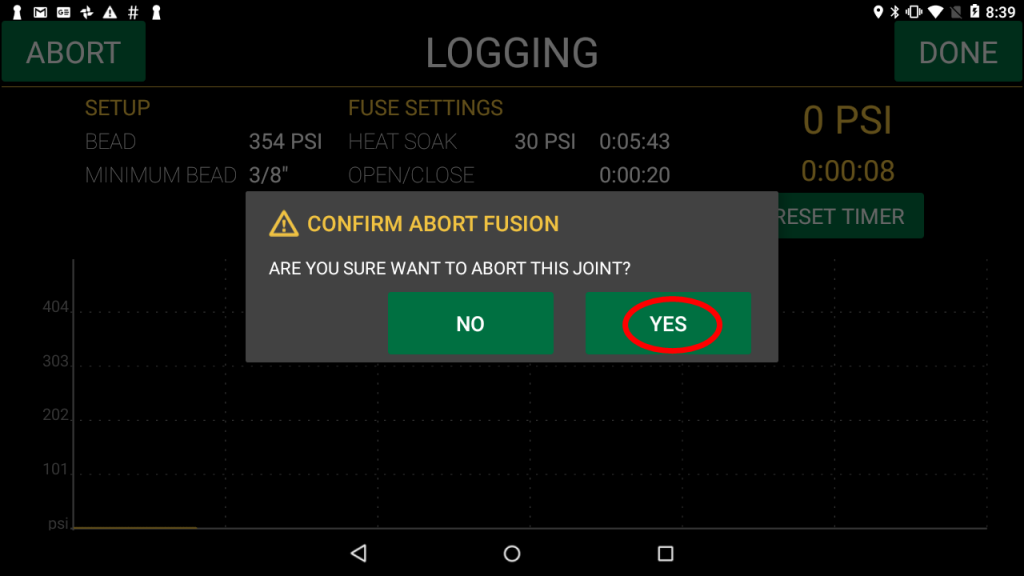
A tablet screen displays a fusion logging interface with a confirmation pop-up: “Are you sure want to abort this joint?” The “YES” button is circled in red, and “NO” is also an option.

4. Add any fusion notes and/or completion photos on the following screens and select “NEXT”.
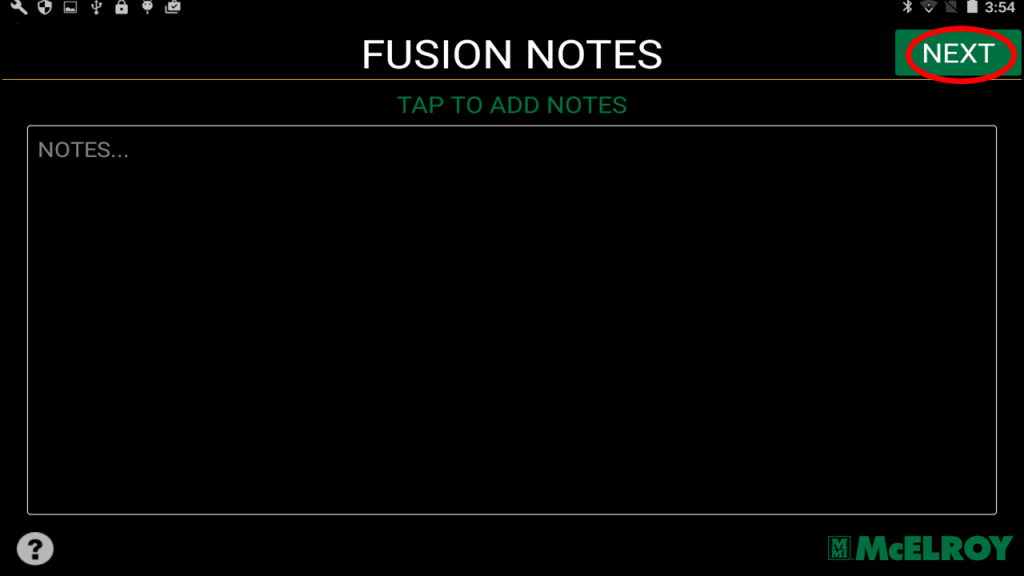
A digital notes app interface titled FUSION NOTES. The screen has a large blank area labeled NOTES... and TAP TO ADD NOTES above it. The NEXT button is highlighted in green at the top right.
Screenshot of a Completion Photos screen with two photo slots, one labeled Final joint. The NEXT button is circled in red at the top right, and the BACK button is at the top left.


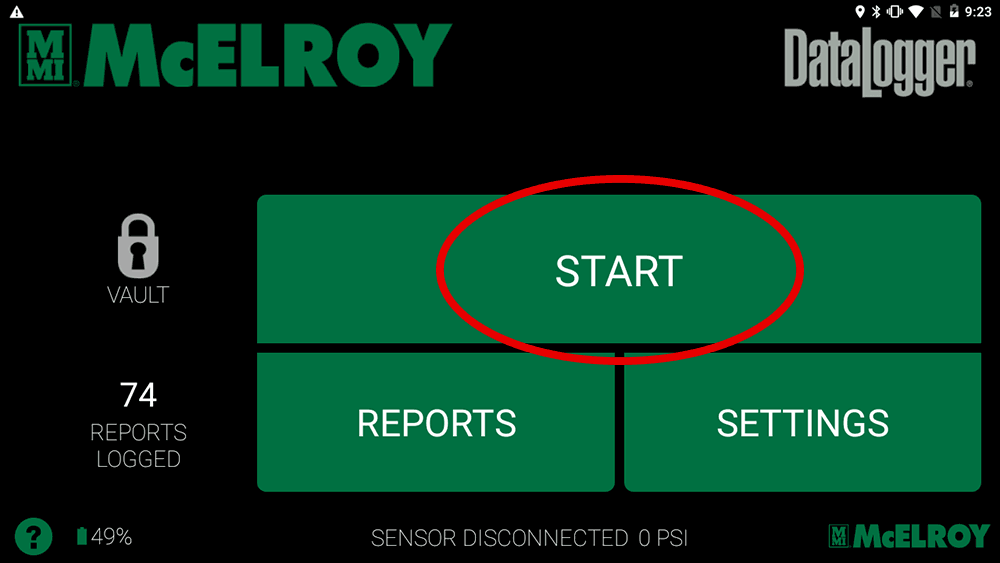
To view aborted job records, select “Reports” from the start screen.
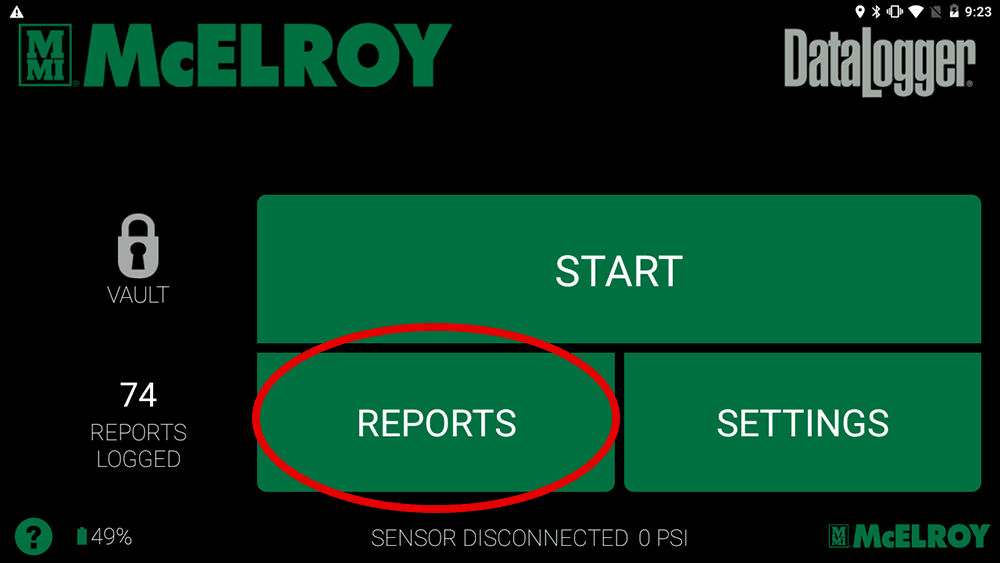
Screenshot of a McElroy DataLogger interface showing large green buttons labeled START, REPORTS (circled in red), and SETTINGS, with 74 reports logged and a lock icon on the left.

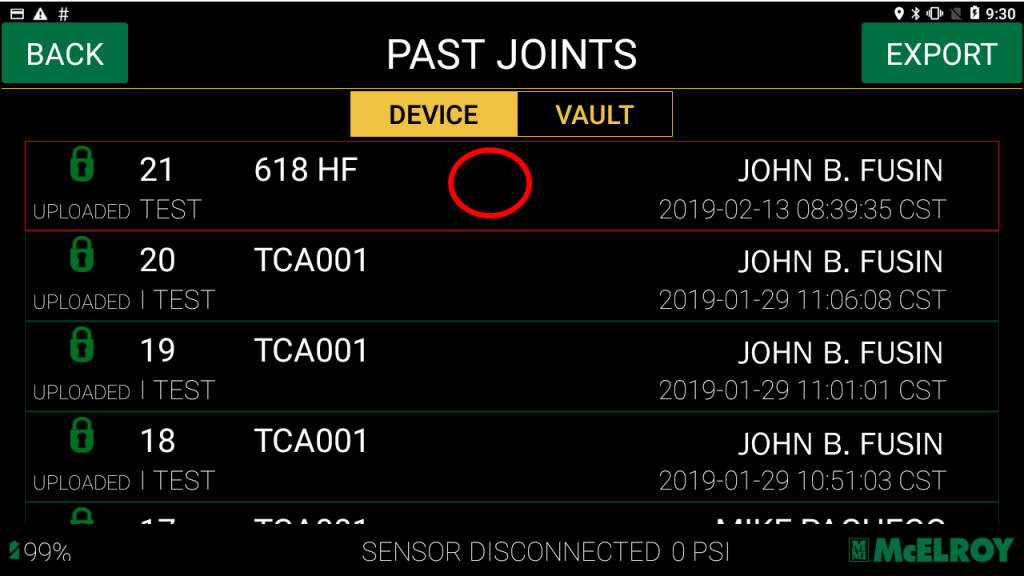
Select the joint.

A digital screen displays a list of past joints, showing joint numbers, IDs, upload status, and user names. The DEVICE and VAULT tabs are visible, with DEVICE selected. A red circle highlights an empty field.

Note the aborted joint status is “YES”.
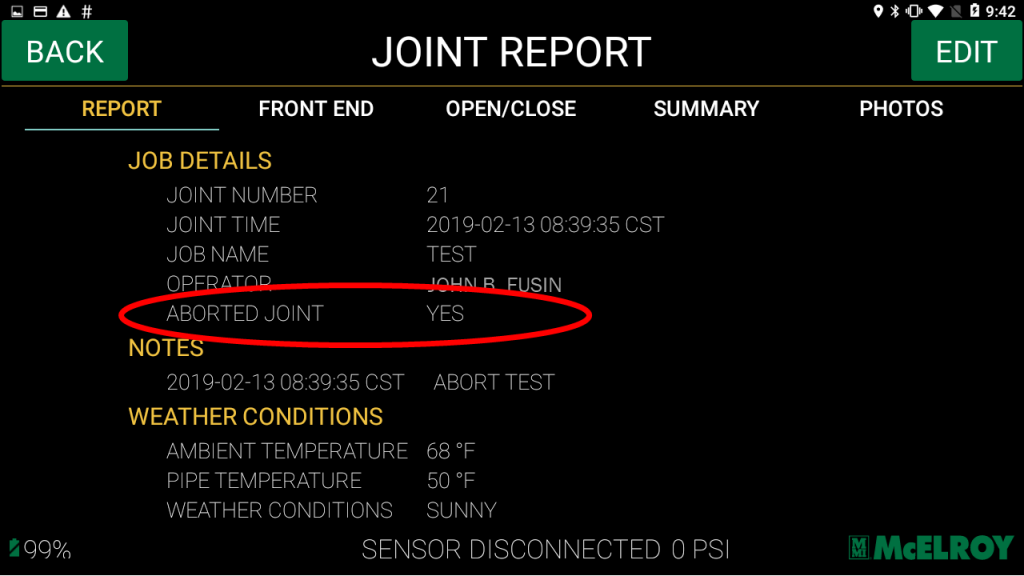
A digital joint report screen displays job details, notes, and weather conditions. ABORTED JOINT is highlighted with a red oval, indicating YES. The interface includes navigation tabs and a battery indicator.

The joint will also be noted as aborted in McElroy Vault™.
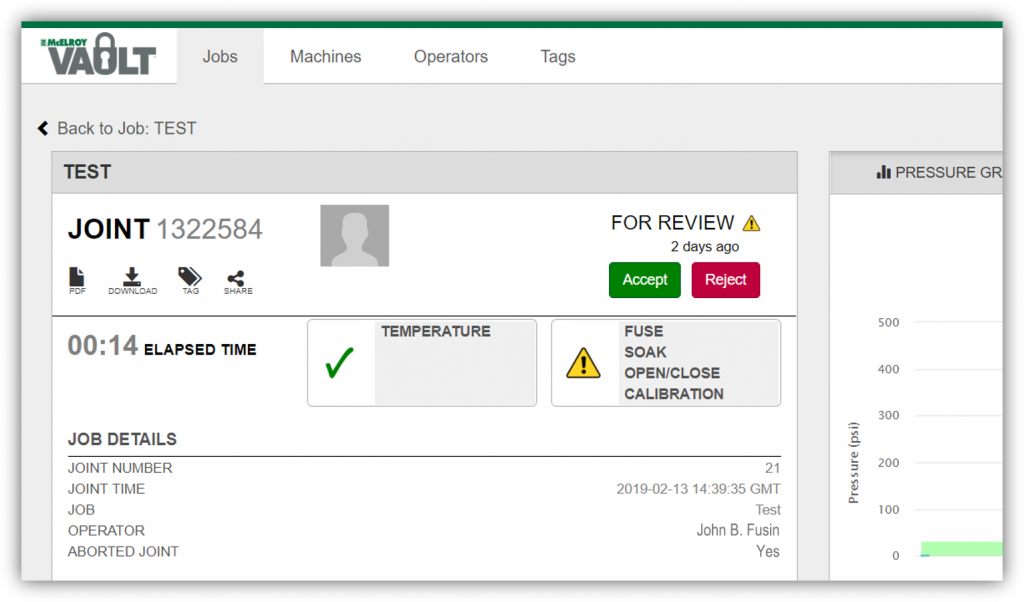
A computer screen displays a test review interface showing joint number 1322584. Options to accept or reject are visible, with elapsed time, temperature, and job details, including operator John B. Fusin.

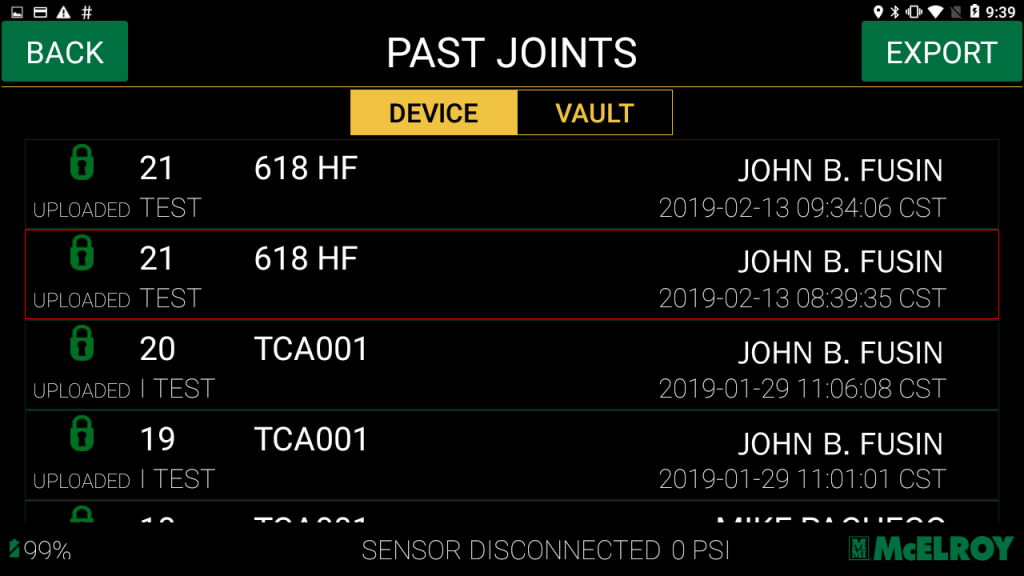
Once the fusion is completed properly, there will be two instances of the joint.

The first is the aborted record and the second is the completed record. This is due to the unique ID assigned to each record by the DataLogger® Vault™ integration when uploaded.
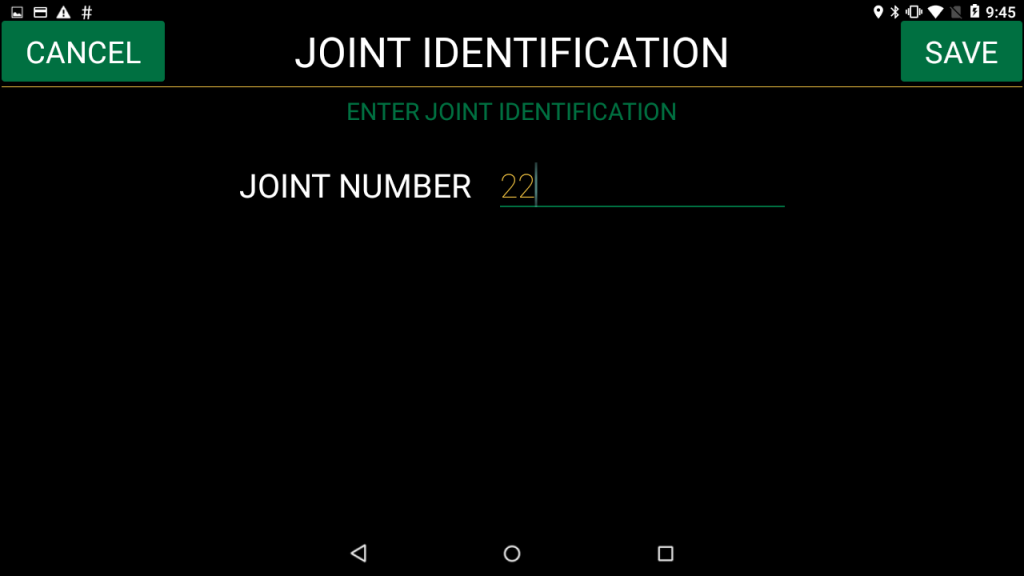
A mobile app screen titled Joint Identification prompts the user to enter a joint number. The number 22 is entered, with CANCEL and time icons displayed at the top.


It’s important to consider the sequencing of the joint ID.

Even if a joint is aborted, the DataLogger ® will automatically sequence to the next joint number. If desired, you can set this back to the original joint ID.
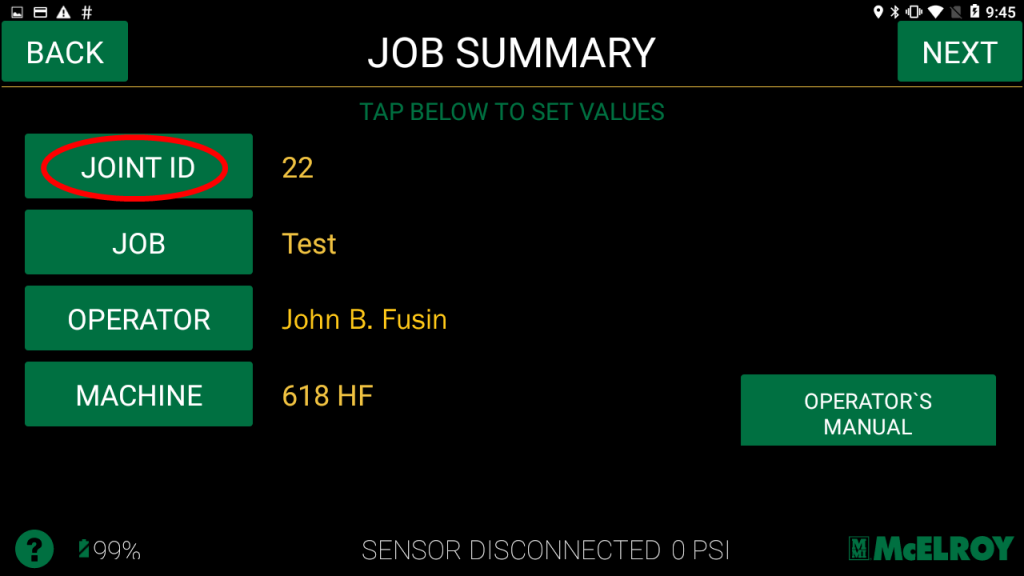
During setup of the next joint, select the “Joint ID” button.
Now change the joint number and click the “Save” button.