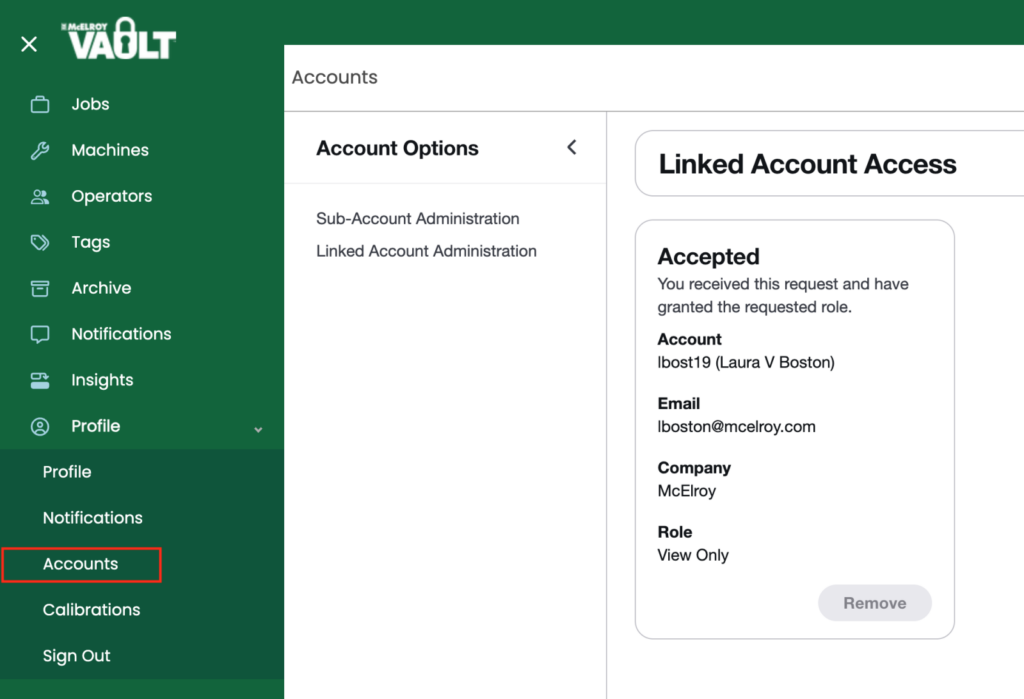
As part of McElroy’s ongoing efforts to innovate new features for the Vault™ interface we have recently introduced account administration features. This update to our account user interface increases visibility and creates linked accounts. Any account holder can see these changes by navigating to “Profile” > “Accounts”. You will see an updated interface which includes “Sub-Account Administration” and “Linked Account Administration.”
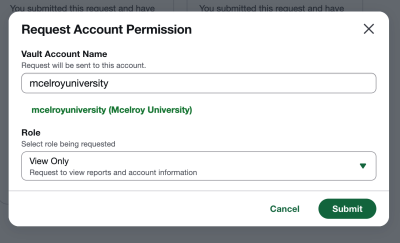
Any given Vault™ account can now submit an access role request to another account, including the level of access. To make the request, the requester will add the Vault™ account name (which should populate in green text under the search field) and the role access:
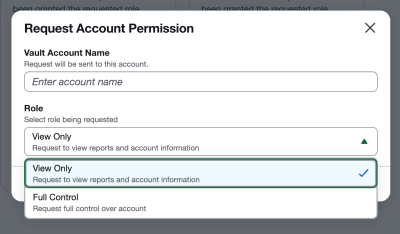
- View Only – Request to view reports and account information but do not have the ability to make changes (such as editing fields, notes, GPS coordinates, etc.)
- Full Control – Request full control over the account which allows them to make changes.
When a request is received from the requester, the requestee will see a badge icon in the left navigation to direct them to the Account page where they can choose to accept or deny the request.
When the request is accepted, the requester then may “assume” the requestee account. Note: Account linking is one-way, meaning only the requester is granted access to the requestee account. The requestee will not have access to the requester account when the connection is established. The Linked Account access page will display all account information including which requests have been accepted and which are waiting on approval.
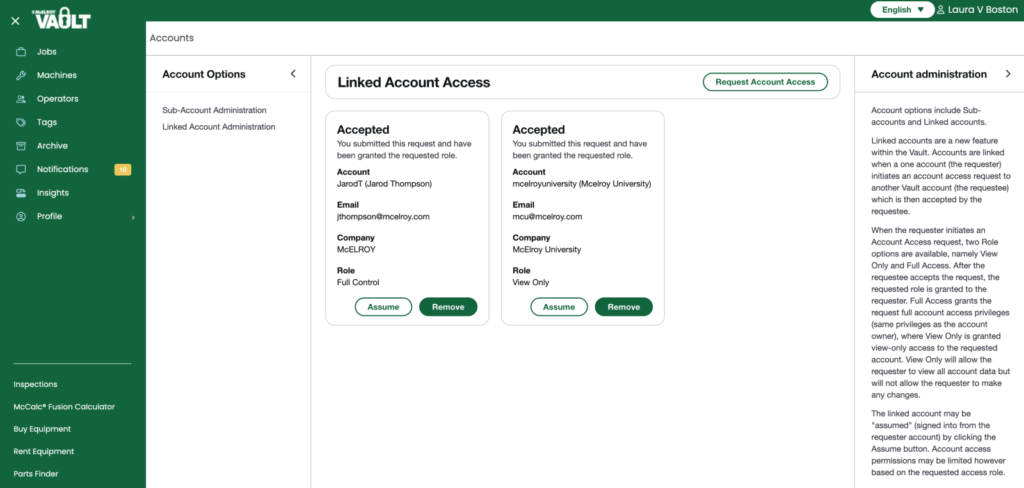
Either the requester or requestee can remove a linked account connection by clicking the Remove button on the Linked Account administration page. This action terminates the connection and access. The process to request access and then be accepted by the requestee would need to be followed again to re-connect if access is terminated.