Keeping your tech-integrated equipment updated is now easier than ever with McElroy’s Guided Firmware Updates.
The Guided Firmware Update process allows users to update components that are controlled by firmware for operation. This process, presented on the DataLogger® 7, can be used as a step-by-step guide for updating machine components as new releases become available.
Updating firmware is essential to ensuring the machine is running the latest version for continued enhancements and new features. Other machine components not covered by the current update may later become available.
Currently, eight guided firmware updates are available:
- Carriage Update – Process for updating carriage firmware;
- Vehicle Update – Process for updating vehicle firmware;
- Vehicle Display Update – Process for updating vehicle display firmware;
- Wireless Receiver Update – Process for updating wireless receiver firmware;
- Battery Charger Update – Process for updating battery charger firmware
- Offline Updating – Procedure for updating a component without an internet connection;
- Port Connection Issues – For troubleshooting a problem with a port connection;
- Editing Serial Numbers.
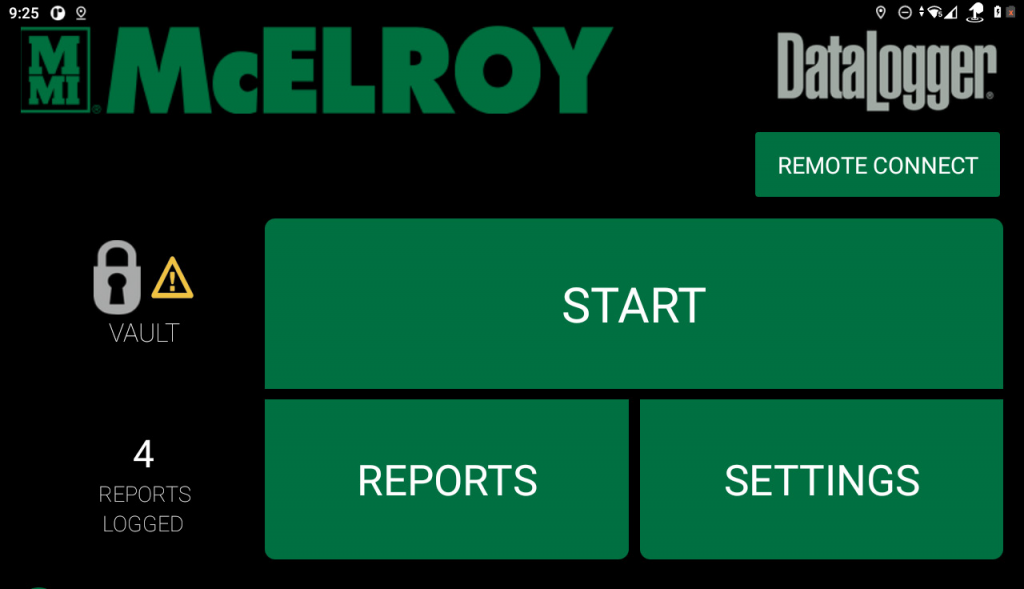
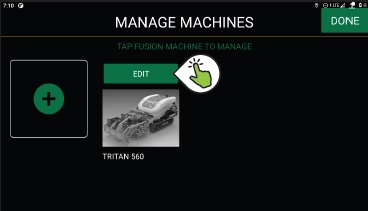
To begin the firmware update process, go to the DataLogger home screen and tap SETTINGS. From the settings screen, tap MACHINES, then from the manage machines screen tap EDIT on the machine you are updating.
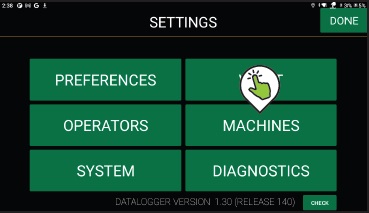
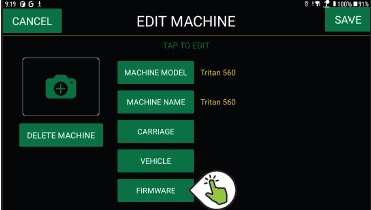
In the edit machine screen, tap FIRMWARE to access the firmware update screen.
You will be presented with a series of options asking which update(s) you would like to install. The DataLogger must be connected to wifi to download a firmware update file. An internet connection is recommended while performing an update, but it can be performed offline if the update file has been downloaded to the DataLogger.
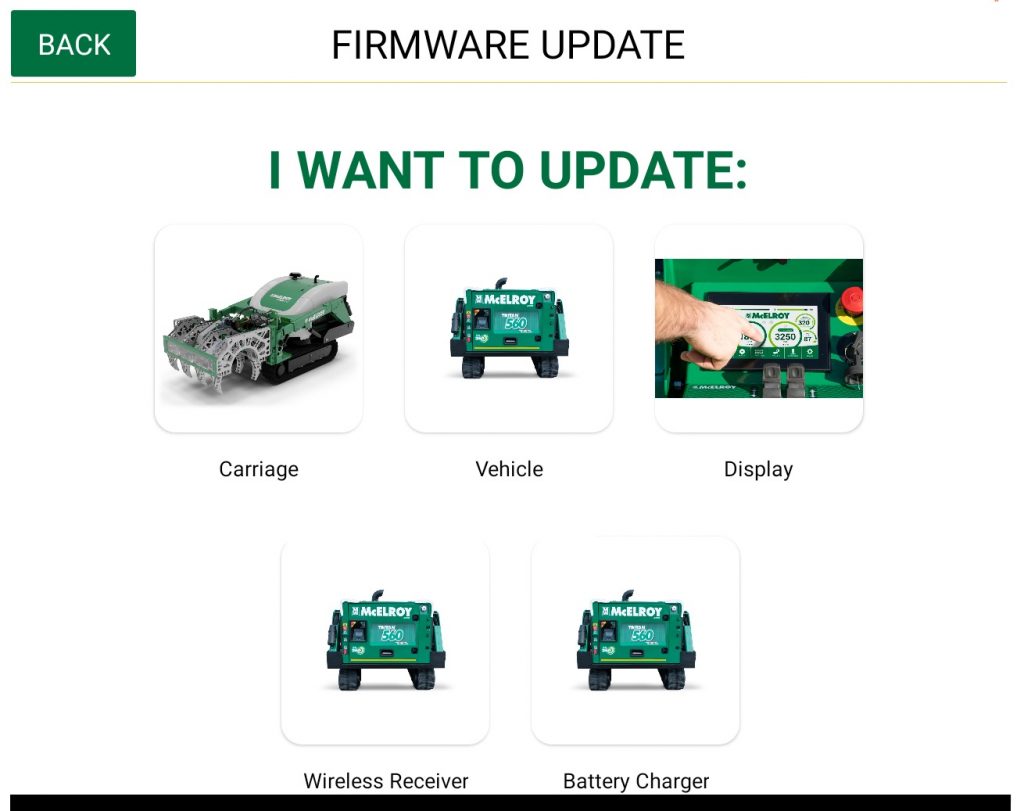
Once you’ve chosen the update you wish to perform, the Guided Firmware process will walk you step-by-step through updating your equipment.