Manually Add Joint Reports To The Vault™

If you are unable to connect to the internet from the jobsite, joint reports can be downloaded to a USB and manually added to your Vault account.

1. Once successfully logged in to the Vault, select the “Upload” button near the top right-hand corner of the screen.
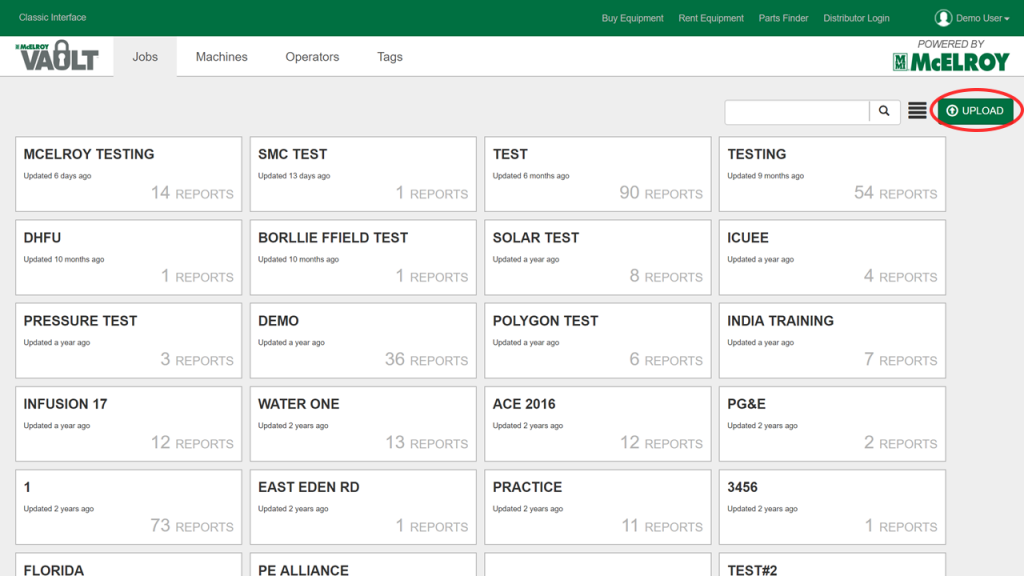
A web dashboard displays multiple report tiles with titles such as MCLEROY TESTING and SMC TEST. A green UPLOAD button is circled in red at the top right corner. The site is powered by McElroy.

2. Add Files

Select the ‘Add Files’ button to choose files from your local machine’s folder directory.

OR

Simply drag and drop the file anywhere in the large rectangle area.
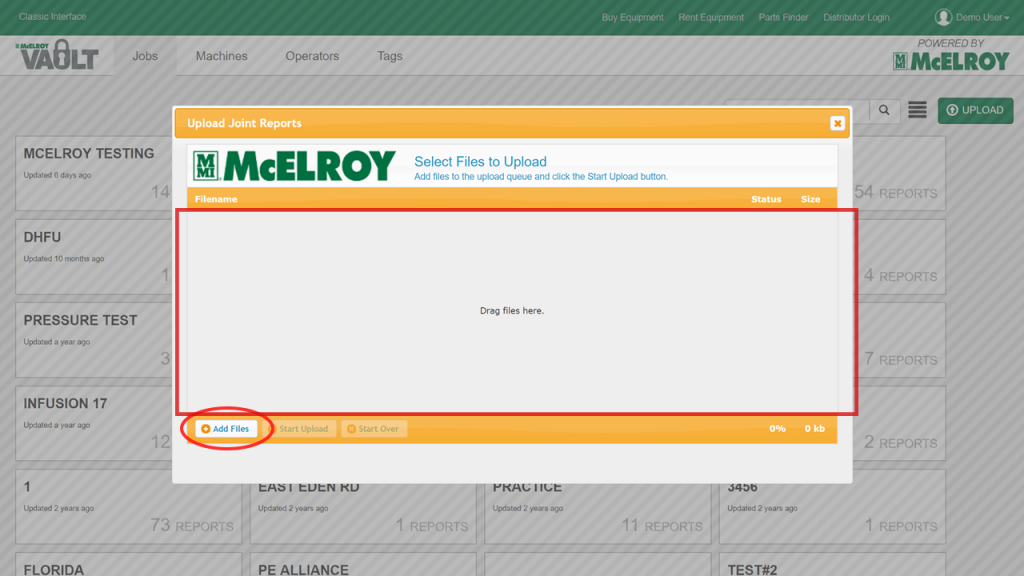
A file upload window titled Upload Joint Reports is open on a McElroy interface, with an empty file list area and an Add Files button highlighted at the bottom left.

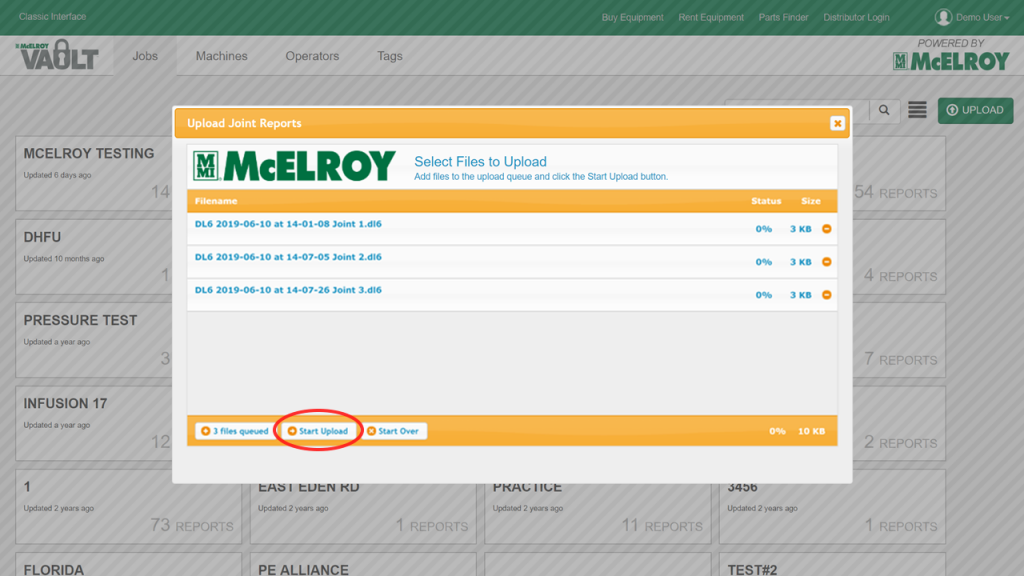
3. Click the “Start Upload” button.

A computer screen shows the McElroy Vault interface, displaying an Upload Joint Reports window with multiple files listed for upload. The Start Upload button is highlighted at the bottom.