It’s a question we’ve been asked many times: “How can we better identify the physical joint in the field with the record in the Vault™?
In response, McElroy has officially introduced two new features to the DataLogger® to assist in identifying joints and related joints in an assembly: Vault™ ID Tags and Fabrication Workflow.

Vault ID Tags
Vault ID Tags are pre-coded, specially-made labels containing QR codes that can be associated with a specific joint. This allows someone to view the joint report just by scanning the QR code on the label attached to the pipe itself.
These labels are UV stable, water resistant, tear resistant, and fade resistant, with a polyethylene- and polypropylene-rated adhesive. The process of assigning a Vault ID Tag is simple: after performing the fusion as normal with the DataLogger® tablet, the operator will scan the label to associate it with the Vault joint record.
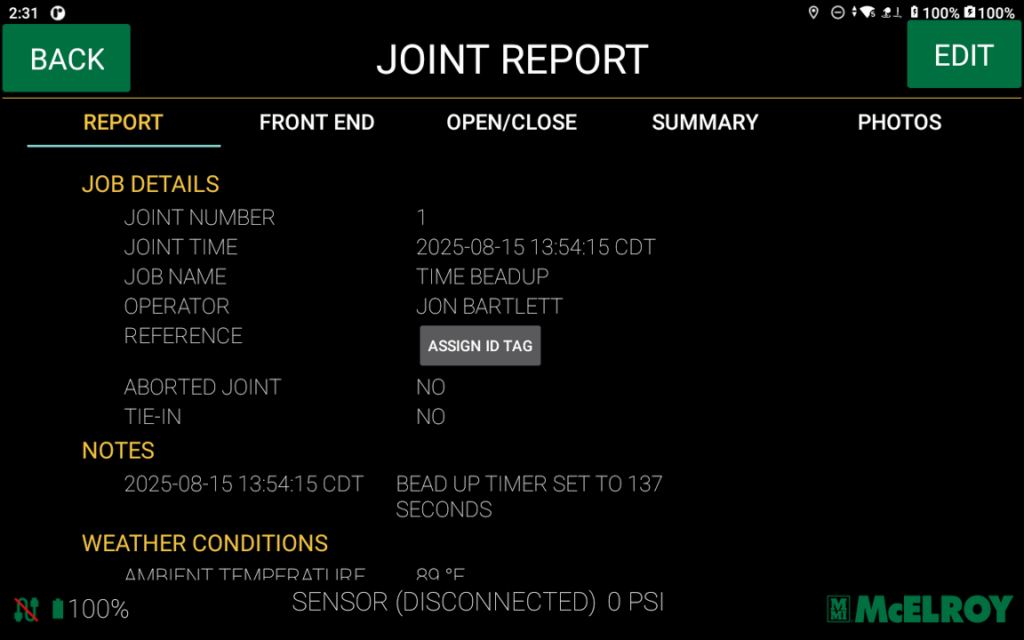
Once the information has been uploaded, the joint report can be viewed by anyone who scans the label with any device.
Even better: no custom app is required, and the open URL allows any device to access the joint report – even without a Vault account.

Vault ID Tags are expected to become available in the coming months.
Fabrication Workflow
The Fabrication Workflow is an extension of the standard DataLogger® workflow to include additional data that relates different joints together. The features of the fabrication workflow were designed for the needs of prefabricated pipe manufacturers, but can be used effectively for a number of situations where multiple joints need to be related to each other.

In the DataLogger preferences screen, there is a new option to “Enable Fab Workflow.” Turning on this option adds additional fields to make assembly reporting more robust.

The two main fields are located in the “Job Summary” screen, under “Fab Assembly Number” and “Fab Assembly Serial.” The Fab Assembly Number is essentially the part number for the final assembly you are currently working on. The “Fab Assembly Serial” is the serial number for the final assembly you are currently working on. Entering these fields will auto-link other joint records in your account with the same assembly number and assembly serial.
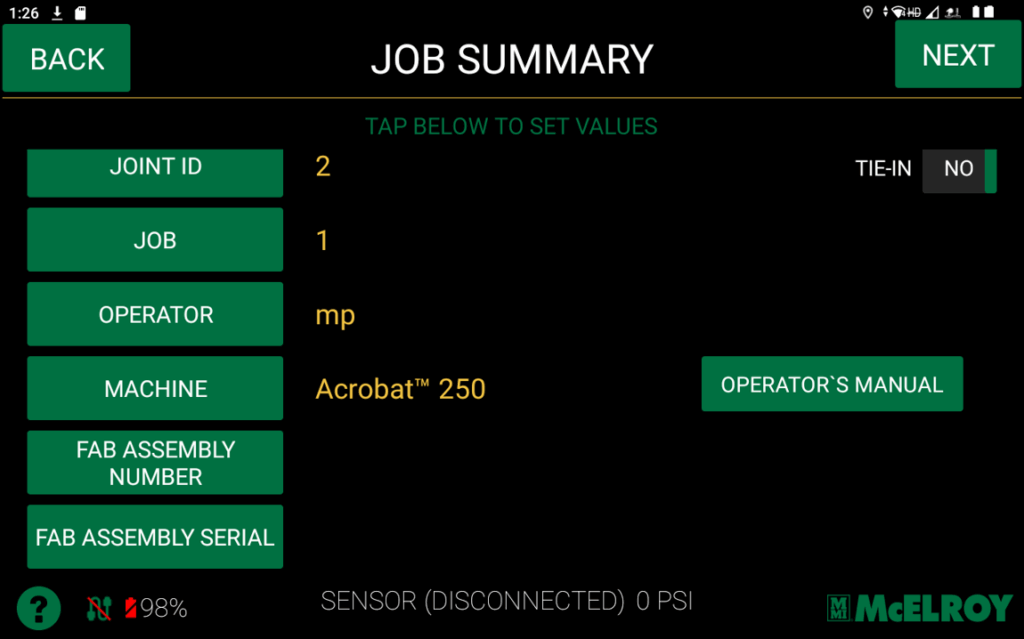
For example, if you are working on an assembly with four joints, the assembly number and assembly serial are kept the same on all for joints. By looking up the joint in the Vault – either by a user or through the Vault ID Tag – all other joints in the assembly are also linked. This is done in the “Related” tab of the joint, under the heading “Other Joints in this Assembly.”
These two features can be used independently, but are much more powerful when combined!
One comment on “Introducing Vault™ ID tags and fabrication workflow”
Comments are closed.