1. Before aborting a joint, ensure the setting “save aborted joints” is set to “YES” in your Preferences. Settings > Preferences > Joint Retention: Save Aborted Joints > “YES” 2. At any time during the fusion process, push the “ABORT” button in the top, left-hand corner of the screen to stop the recording process. 3. A pop up box will appear to confirm you want to stop this fusion. 4. Add any fusion notes and/or …
Setting Up Operators & Adding Machine Details On The DataLogger®
1. Select “Settings” from the Home screen. 2. Select “Operators” button. 3. Choose the “add operator” button. 4. Enter Operator name, ID number if applicable and ID Issuer. NOTE: You can also add a picture of the operator. Click the “Save” button to save operator details and return to the Settings menu screen. 5. Select “Machines”. 6. Select the “Add Button”. 7. Add Machine Details. Enter the machine model, name, and serial numbers in each …
Backup and Manually Reinstall DataLogger® Software
How to remove your DataLogger software (including all joint reports, and user information) and restore it to factory settings. BACKUP ALL DATA (This is where you will store the backup data if any issues during the update process occur.) On the confirmation dialog box, tap “OK” to allow the DataLogger app access to the USB drive. UNINSTALL THE DATALOGGER SOFTWARE MANUALLY INSTALL NEW SOFTWARE
Around the world
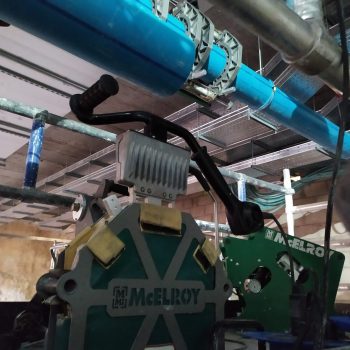
An incredible polypropylene project is underway in Madrid with Italsan supplying Nupi pipe for the Caleido Tower’s HVAC and plumbing system.